Previous site

AI Smart Door: find a face, open the door

A tiger is pretending to be Mum! Build a door that opens only when the camera finds a face.

Ages 5–8★★★★★Coding Cubroid AI

What you'll learn

  • Learn what face detection is
  • Build a door that opens when it sees a face
  • Test and find out that AI can make mistakes

You need

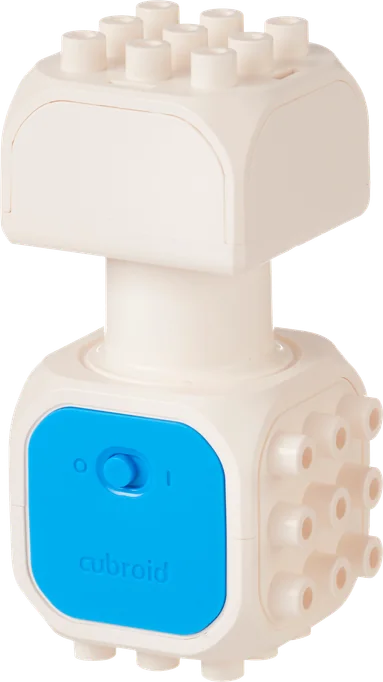
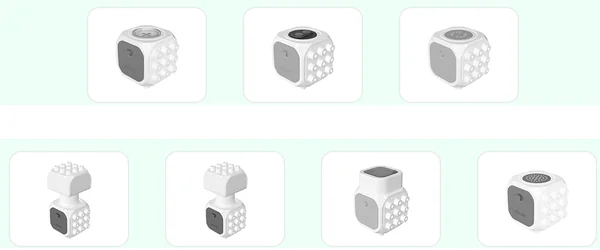
  • DC Motor Block
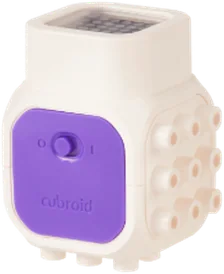
  • LED Block
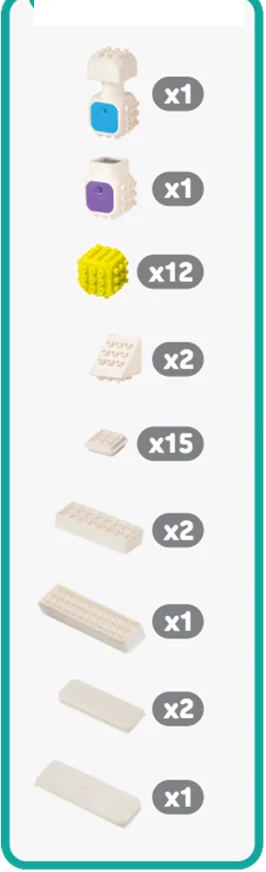
  • Shape and connector blocks (see the parts list)
  • Character model (the tiger)
  • Tablet with the Coding Cubroid AI app (camera)
AI Smart Door: find a face, open the door

Story & AI

Notes for teachers

About 40 minutes: story → face detection → build → code → test. The deck gives no grade; it suits ages 5–8 (it uses the Coding Cubroid AI app).

Point out the difference: face detection only finds whether a face is there; face recognition tells who it is. Our activity only detects faces.

Class promises: 1) Have a go and join in. 2) Say “I can try!” or “Please help me.” 3) Use blocks safely and keep fingers clear. 4) Put every block away when you finish.

Knock, knock! Who's there?
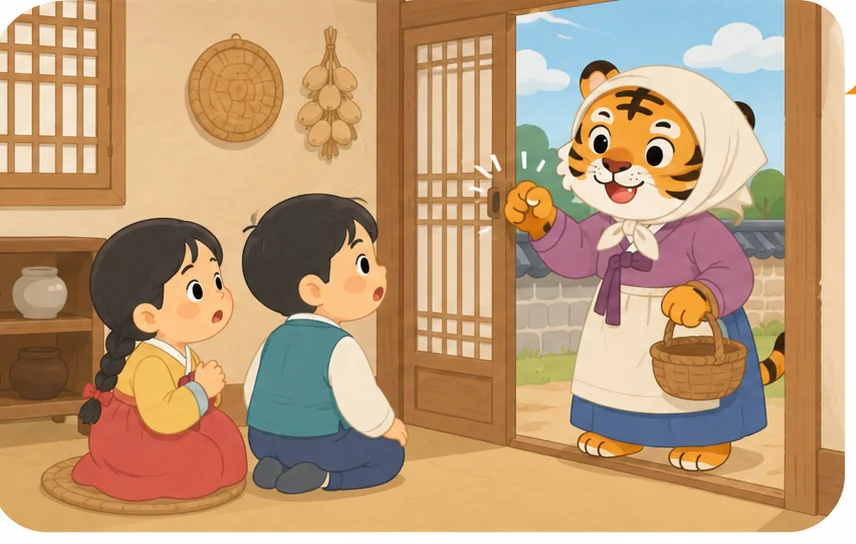
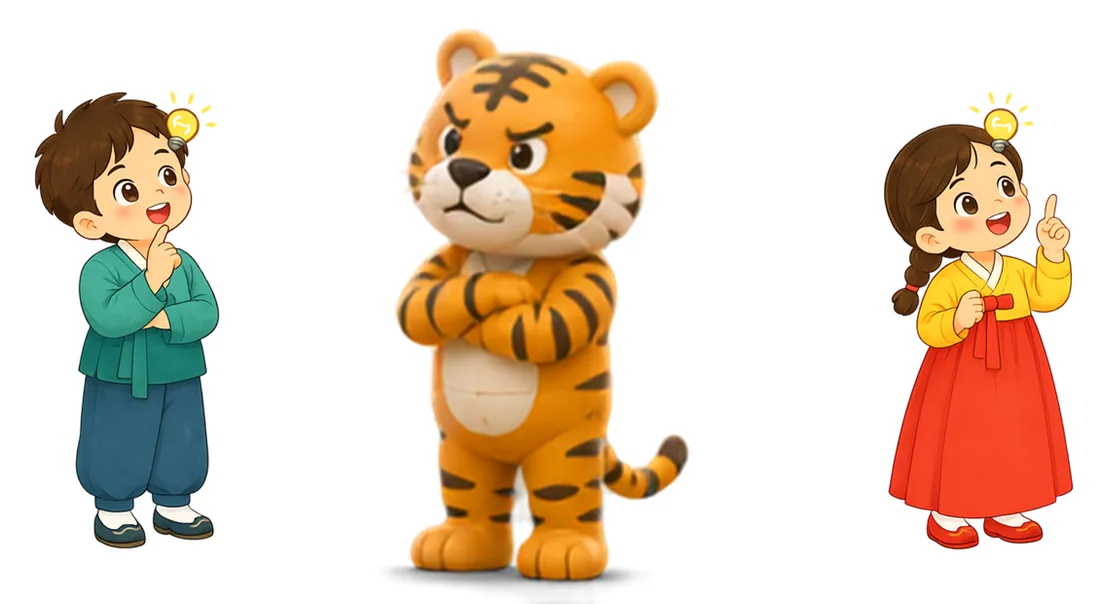
Once upon a time… a tiger knocked on the door and pretended to be Mum: “Mum is home!”
Is it really Mum? The children listened to the voice and looked at the hands. The tiger copied Mum, so they were unsure.

💡 How can we tell a person from the tiger in our story?

AI can look for a face in a camera image
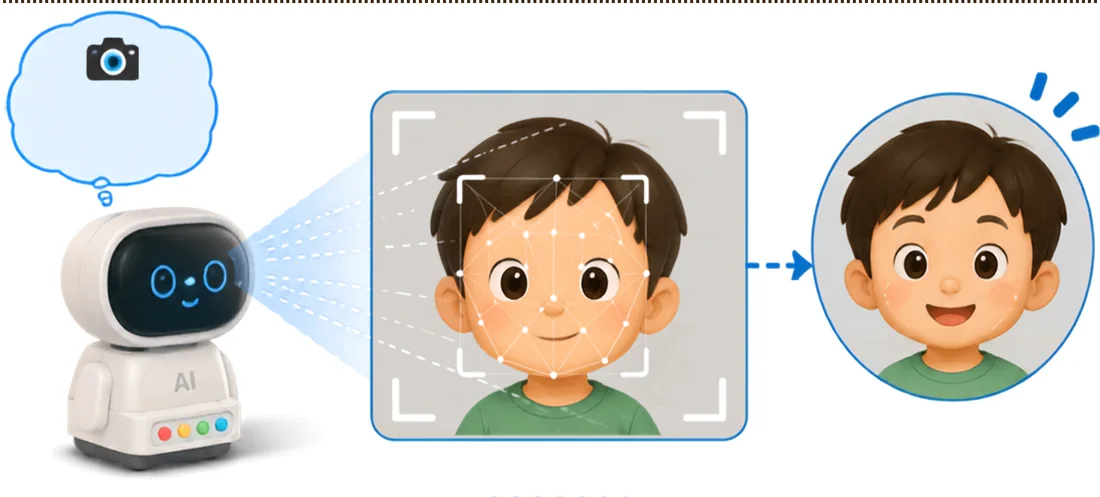
Finding a face is called face detection. It does not tell us who the person is.

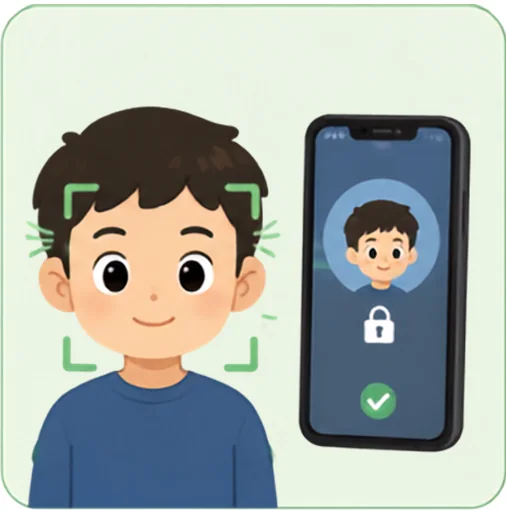
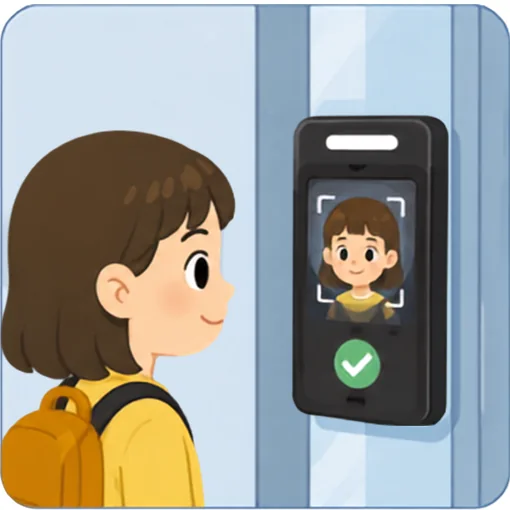
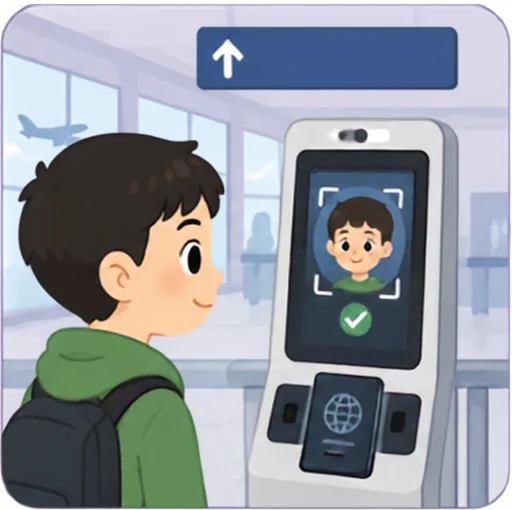
Face recognition in everyday life

Phone unlock
Building entry
Airport checks

These systems may identify a person. Our activity only looks for a face.

Let's build a door that reacts to a face
Program it to open when a face is found. If no face is found, keep it closed. Then test the tiger model.

Build

Meet today's blocks

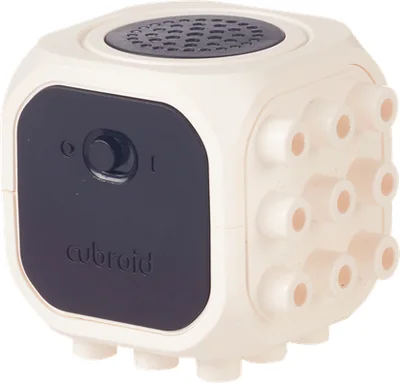
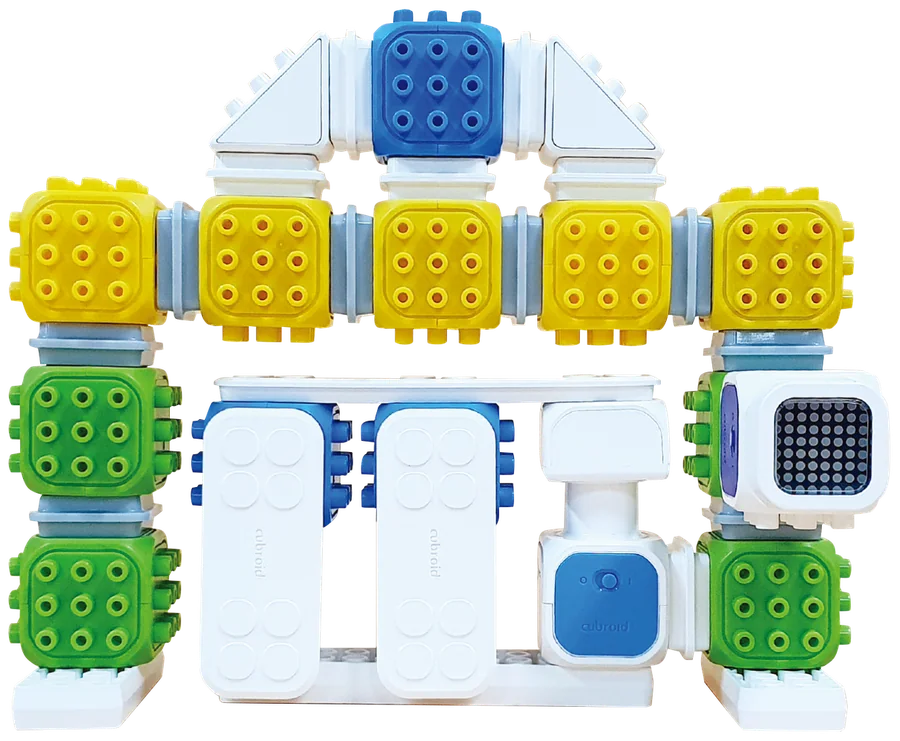
  • DC Motor BlockOpens and closes the model door
  • LED BlockShows the door's expression

What you need

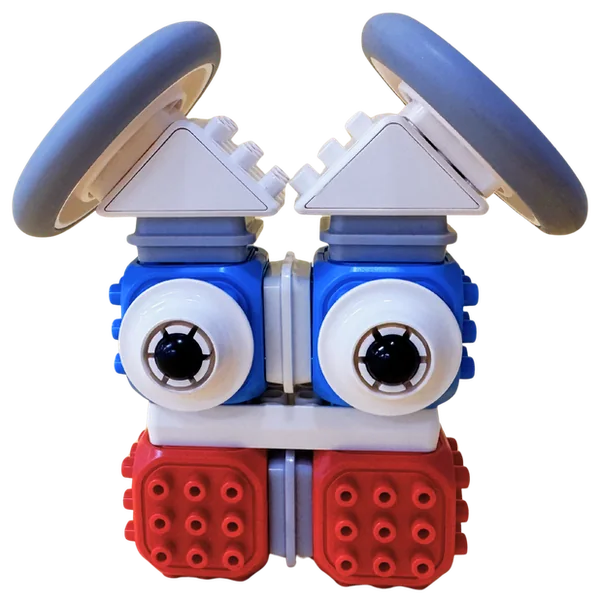
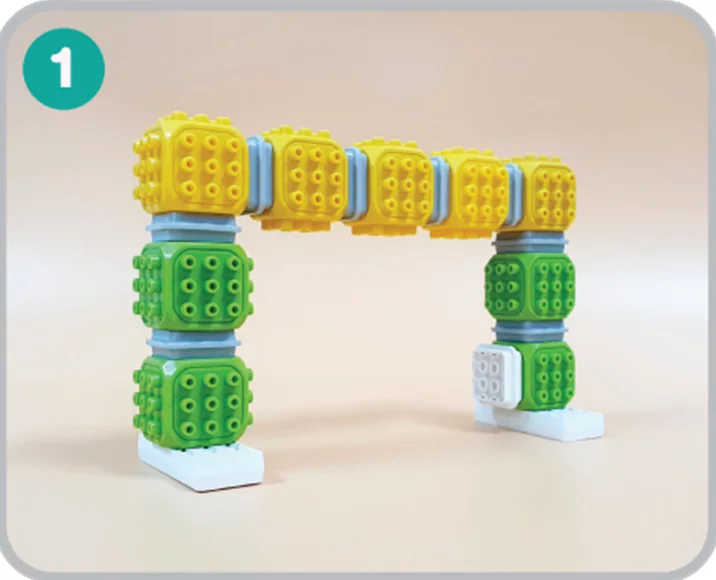
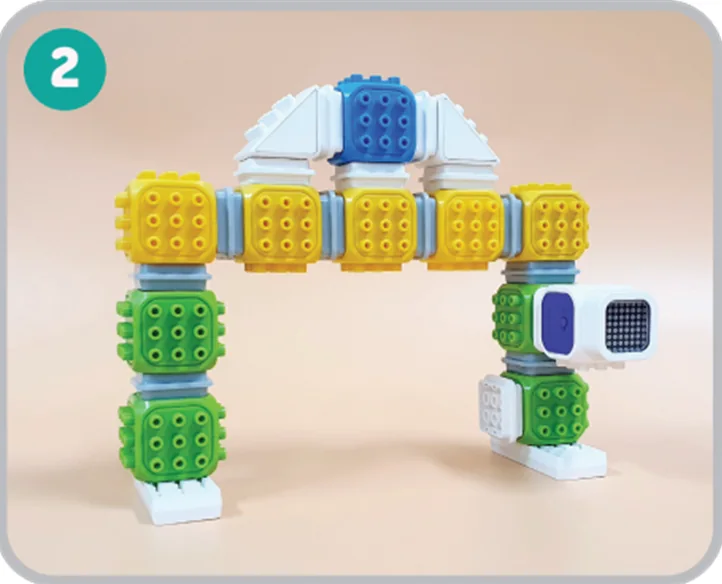
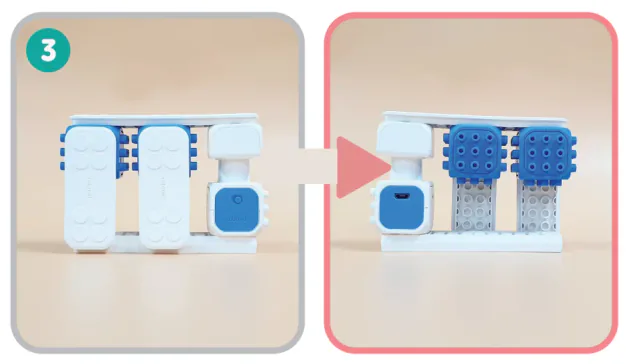
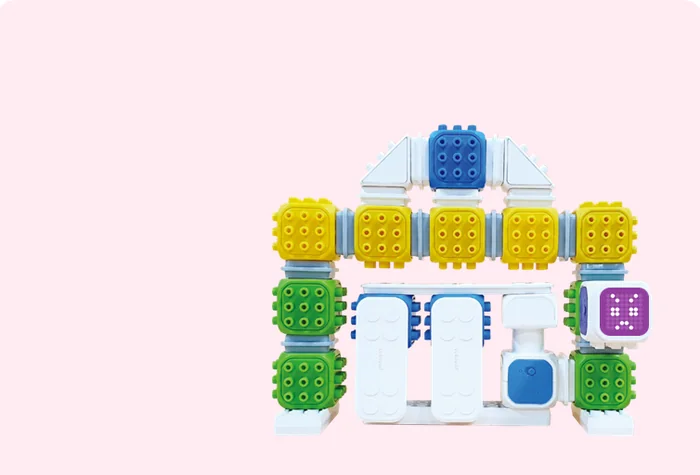
Build your AI Smart Door

Code

Open the Coding Cubroid AI app

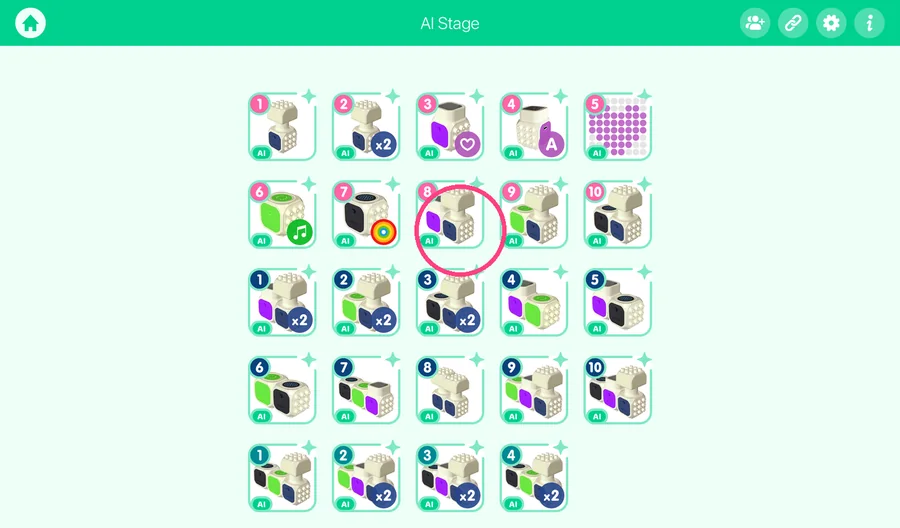
Open the app and choose AI Stage.

Coding Stage
AI Stage
Control Stage
Smart Control

Set the group number

Set the group number to match the stickers on your blocks.

Group Number33

Turn on and connect your blocks

Turn on your blocks, then connect them. Grey icons mean no connection.

Choose the face-detection stage

Choose the pink number 8 icon. It has the face-detection blocks.

How should our door react?

No face found: closed
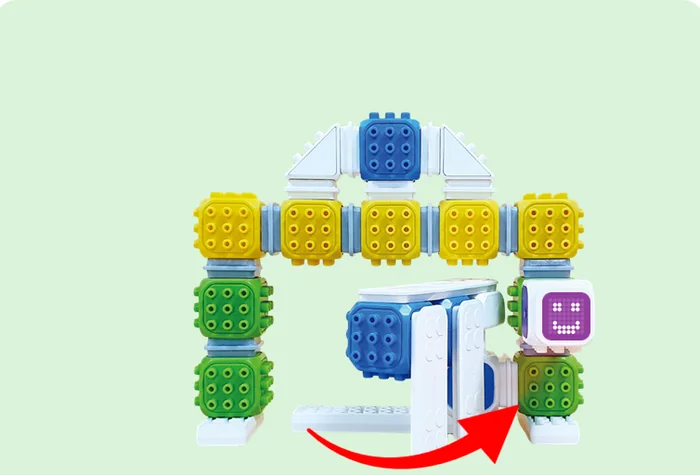
Face found: open

Get to know the code slots

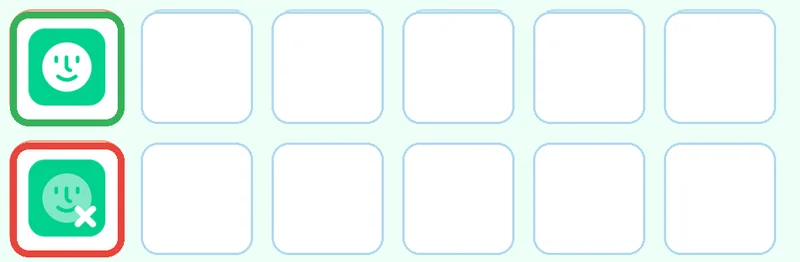
Put “face found” in the first top slot. Put “no face found” in the first bottom slot.

  • Face foundThis row runs when a face is found

  • No face foundThis row runs when no face is found

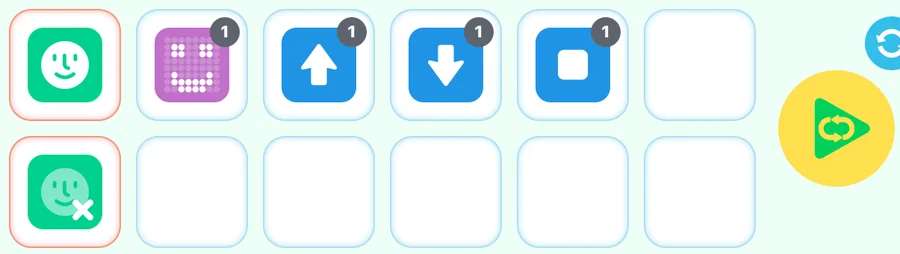
  • LED: smileShows a happy face

  • LED: angryShows an angry face

  • Motor: up arrowTurns the motor one way

  • Motor: down arrowTurns the motor the other way

  • StopStops the motor

  • PlayStarts the program

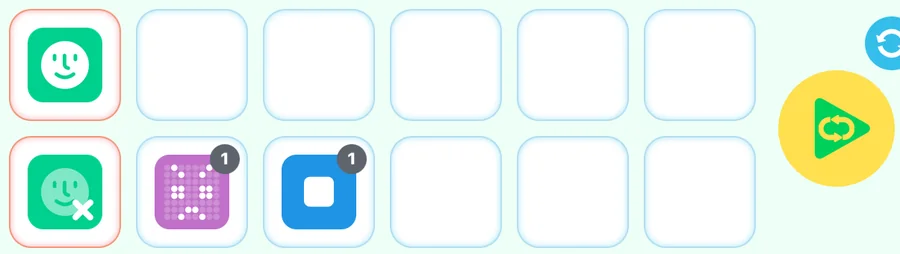
No face found: keep the door closed

Show an angry LED face and keep the model door closed.

Face found: open and close the door

Smile, open, close, then stop.

💡 Test which motor direction opens your door.

Test

Test your AI Smart Door

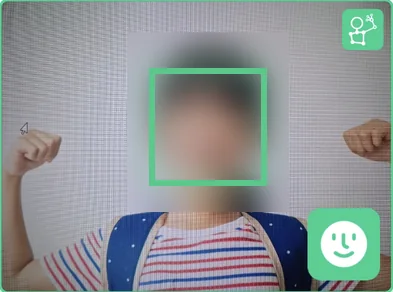
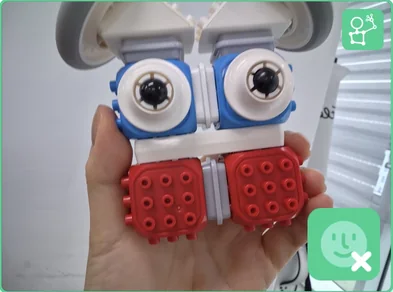
Turn on the camera, then press Play. Try your face and the character model. Watch how the LED and the door respond.

💡 These are real camera examples. Your results may be different.

My face → face found
Tiger model → no face

Test again and compare

Try a different distance or angle. Does the response change?

💡 The detector can make mistakes.

Quiz

QCould the tiger model be detected as a face?

Show answer

Test it and see! — In our example it was not found as a face, but light and angle can change the result — AI can make mistakes.

QWhich systems may use face recognition? (1) Phone unlock (2) Building entry (3) Airport checks (4) Traffic lights

Show answer

(1), (2) and (3) — Traffic lights change by time. They do not look at faces.

💡 Pack away safely: stop the program and switch off the blocks. Sort every piece back into its place.

Lesson complete!

Built it, coded it and tested it? Tap to save your progress.