
My Words Become Code, My Ideas Become a Robot
Describe an action in words, compare the blocks made by AI with the real robot, and improve your instruction.

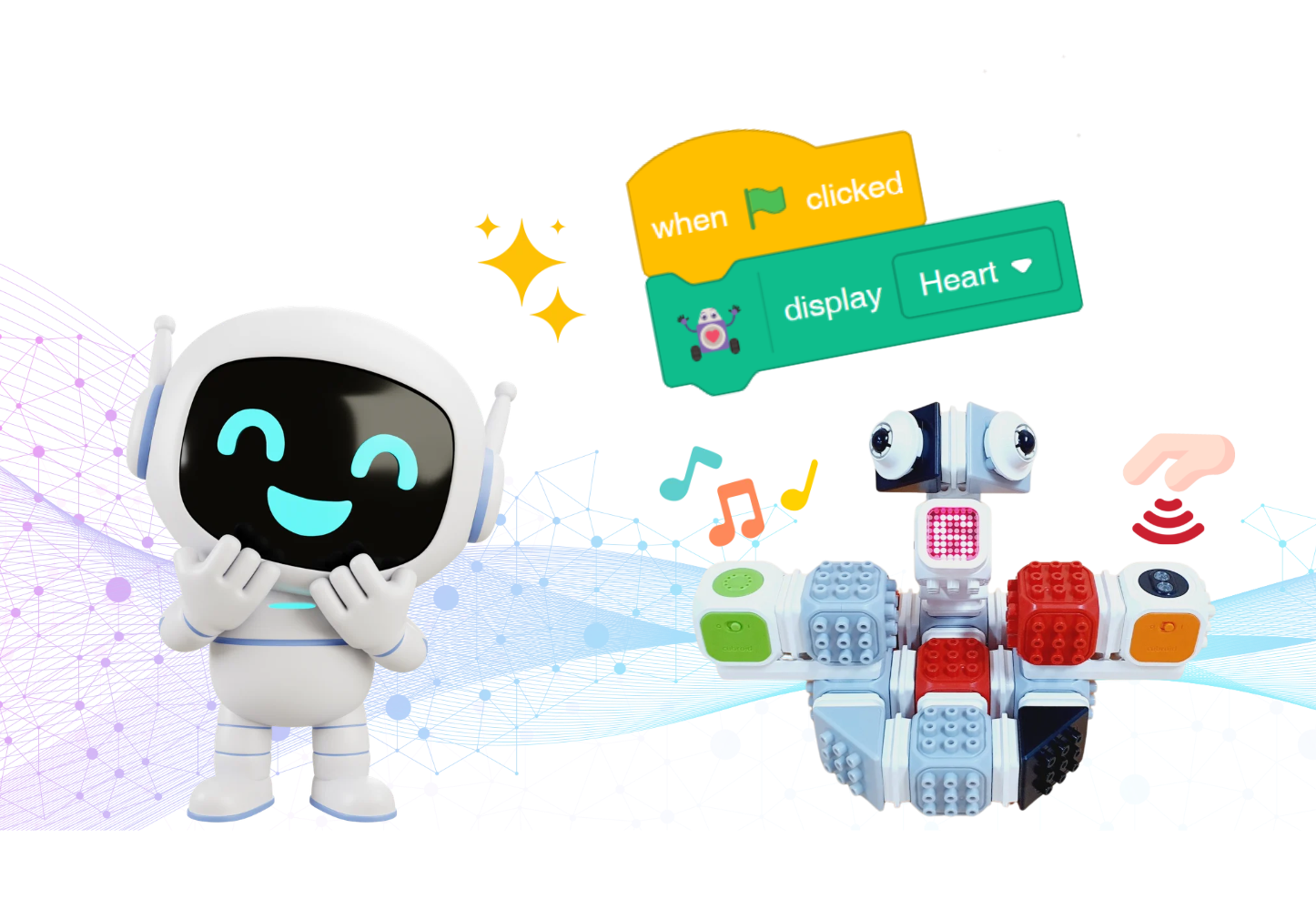
Put your idea into words
Notes for teachers
Suggested flow: use session 1 for speaking activities and app practice, and session 2 for assembly, sensors and the dice challenge. Allow about 40 minutes per session and adjust for assembly time.
In pairs, alternate between describing and running/checking. AI output may differ from the examples: focus on comparing intention and result, not copying an identical block stack.
The same words can suggest different pictures. Before asking AI, try communicating your idea clearly to a partner.
Describe a drawing without showing it
Draw a simple picture and describe it using words only. Compare the two drawings: which shapes, positions and sizes match? Swap roles and try again.

Say exactly which pencil case you mean
- “Please bring me that pencil case.”
- “Please bring me the blue pencil case on the right side of the desk.”
What changed when you added a colour and a position? Did your partner make any assumptions about details you had not mentioned?
A different result is not automatically a failure. Keep it if it matches your intention; otherwise, add the missing detail and explain again.
Get started in Curo AI
Vibe coding means describing the action you want and building a program through dialogue with AI. You choose what to make and check the result yourself.
- Describe
State the starting condition and action.
- Generate blocks
Read how AI interpreted your request.
- Test and revise
Check the result, then keep or revise it.
Open the app and find Vibe Coding
Open Curo AI Studio in Chrome. In the Code tab, select Vibe Coding at the bottom right to open the prompt panel.
| Control | What it does |
|---|---|
| Input box | Type the action you want in a short sentence. |
| Make blocks | Turn your request into command blocks. |
| Speak | Use the laptop microphone. Check that your words were recognised correctly. |
| Remove blocks | Remove generated blocks. Check which code you need before using this control. |
| Examples | Choose a sample prompt and adapt it to your goal. |
Screenshots show the actual app in Korean or English. Button wording and position may vary with the app language and version.
Practise with an on-screen sprite first
Before connecting the robot, try a short command. Use this practice example as a reference to compare with AI-generated code.
When the green flag is clicked, make the sprite move 10 steps and say “Hello!”.
when @greenFlag clicked :: hat events
move (10) steps :: motion
say [Hello!] :: looks
Click the flag and check the movement and speech bubble. Read the block order and numbers to see whether they match your request.
If an unfamiliar term appears, rephrase it or split the request into shorter steps. You can also find and add the block yourself.
Assemble the dice robot
Build a robot that responds with light and sound. Its proximity sensor will later trigger an on-screen dice roll.
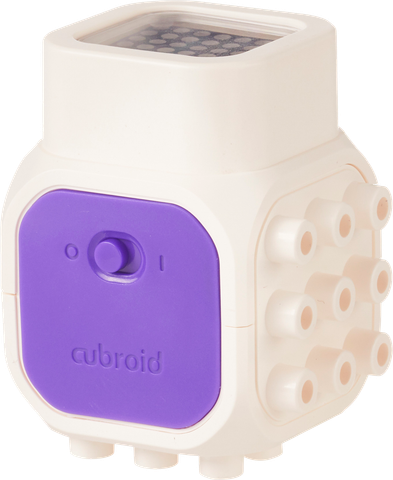 LED blockDisplay letters, numbers and symbols with light.
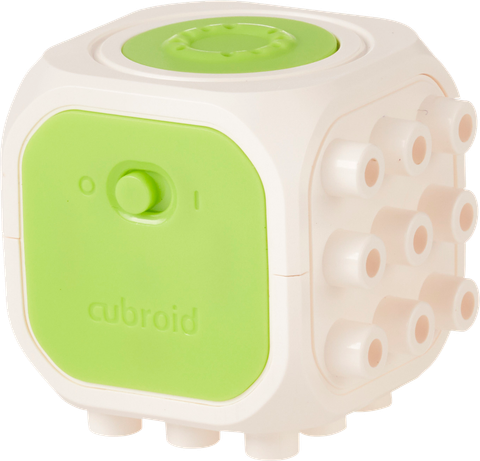 Sound blockPlay a selected sound effect.
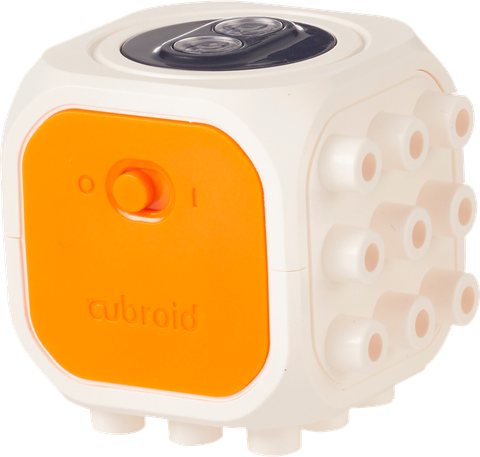 Proximity sensor blockDetect an object in front using infrared light.
Follow the assembly photos
View the side of the assembly
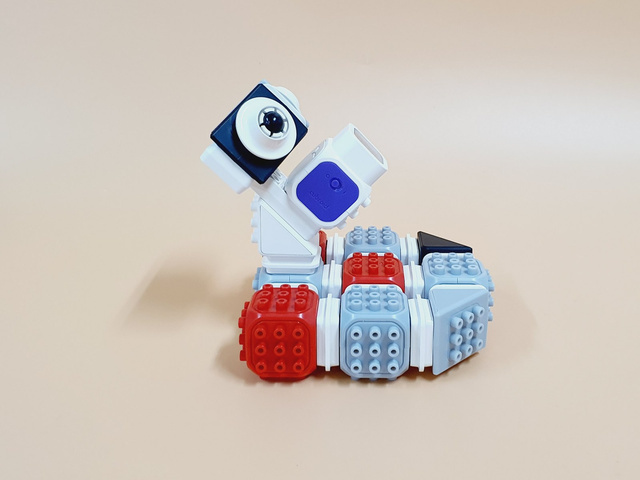
Connect the robot with Bluetooth
- Connect blocks
Turn on the blocks and select Connect blocks in the app.
- Choose the group and block
Check the group number set on your kit and select the block to connect.
- Pair the device
In Chrome’s Bluetooth dialog, select and pair your own device, not your partner’s.
Check that the robot is stable and the sensor is not covered. If connection fails, check power, group number and Bluetooth status in that order.
Turn words into code and test
- When?
When the flag is clicked? When a hand approaches?
- What?
Which image, sound or action do you want?
- How long?
Once? Repeatedly? For how many seconds?
The blocks below are comparison examples from the lesson. AI will not always produce identical code. Read the starting condition, action and repetition, then run it to check.
Mission 1 · Show a heart on the LED
Show a heart on the LED block.
when @greenFlag clicked :: hat events
display [Heart v] on LED :: #0FBD8C
QI did not specify a starting condition. What did AI add?
Show answer
When the green flag is clicked — Decide whether starting with the flag matches your intention. Keep it if it does; otherwise, specify the starting condition you want.
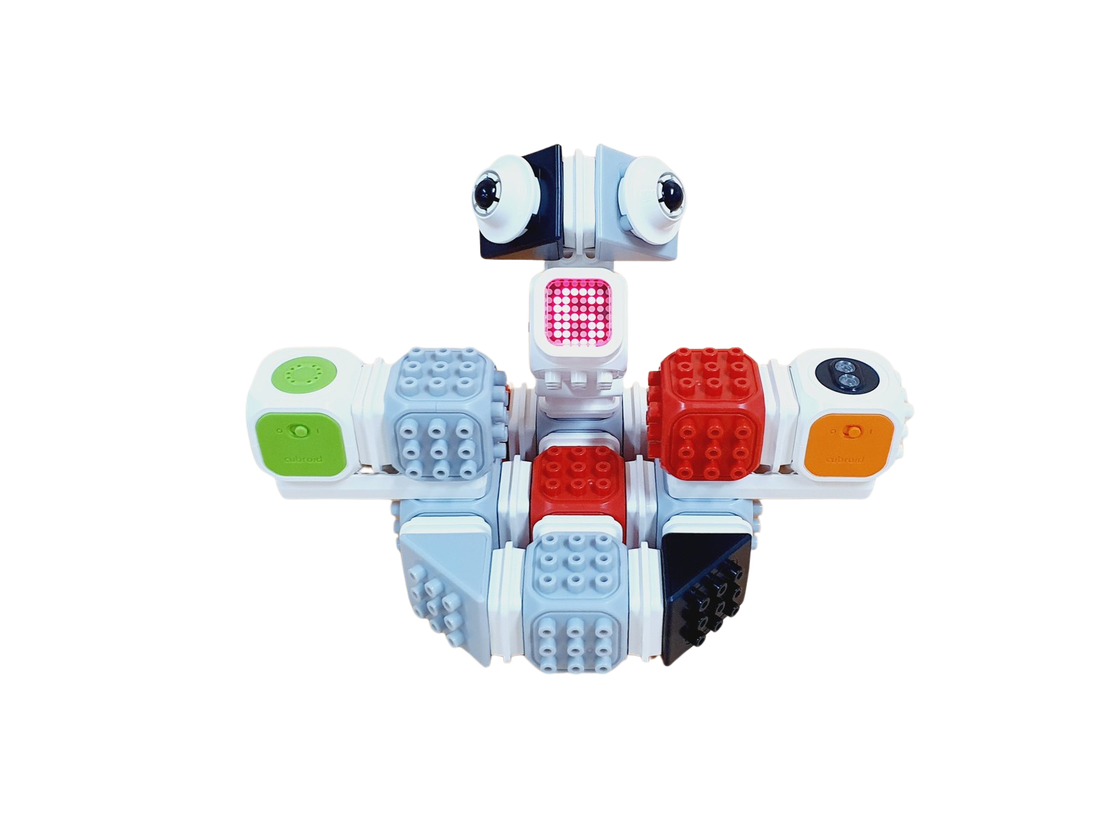
Mission 2 · Respond to a hand
When the green flag is clicked, keep checking the sensor. When I bring my hand close, show a heart on the LED and make a beep.
when @greenFlag clicked :: hat events
forever {
if <obstacle detected? :: #0FBD8C> then {
display [Heart v] on LED :: #0FBD8C
play [Warn v] on sound block :: #0FBD8C
} :: control
} :: control| What to check | Question |
|---|---|
| My intention | When should it respond, and which light and sound did you want? |
| AI-generated blocks | Did “close” become an obstacle-detected condition and “beep” become a warning sound? Is there a forever loop? |
| Actual robot | Move your hand towards and away from the sensor. Do the light, sound and repetition match what you wanted? |
If your hand stays close, this code can run again while the condition is true. It also has no instruction to turn the LED off when you move away. Request “only once” or “turn off when I move away” separately if needed.
Extend it into dice and reflect
Mission 3 · Make an on-screen dice roll
A random number is chosen from a set range. This time, the on-screen sprite says a number from 1 to 6. The same number can appear twice in a row without being an error.
When the green flag is clicked, keep checking the sensor. When a hand is detected nearby, make the on-screen sprite say a random number from 1 to 6.
when @greenFlag clicked :: hat events
forever {
if <obstacle detected? :: #0FBD8C> then {
say (pick random (1) to (6) :: operators) :: looks
} :: control
} :: control
The number appears in the on-screen sprite’s speech bubble, not on the robot’s LED. This code has no block that displays the number on the LED.
QWill the dice roll only once if you keep your hand close?
Show answer
It can keep choosing new numbers — The forever loop keeps checking the sensor, so the number can change again while an object is detected. Observe what happens as you move your hand closer and away.
Add a sound to the dice
Keep the sensor condition and the 1–6 range, but add a warning sound. Write your own request first, then open the example to compare.
View an example request and code
Keep the sensor condition and the range from 1 to 6. After saying the number, play a warning sound on the sound block.
when @greenFlag clicked :: hat events
forever {
if <obstacle detected? :: #0FBD8C> then {
say (pick random (1) to (6) :: operators) :: looks
play [Warn v] on sound block :: #0FBD8C
} :: control
} :: control
Find the changed block, then run the program to check both the number and sound. Confirm that the conditions you asked to keep are unchanged.
Change one thing and test again
Choose the sound, number range or starting method. Say both what should change and what should stay the same. Compare the code and results before and after the change.
- “Change only the number range to 1–10. Keep the sensor condition and warning sound the same.”
- Did the random-number range change? Are the sensor and sound blocks unchanged? What happened when you ran it?
AI helps; I make the decision
- Test whether the result matches your intention and is safe.
- Do not use AI to deceive or hurt someone.
- Do not stop at “AI did it.” Decide whether to use the result and correct unwanted actions.
My checking and revision record
| Record | Reflection question |
|---|---|
| First request | What action did you want, and how did you describe it? |
| Difference noticed | Where did your intention, the blocks and the actual result differ? |
| Revised words | Which condition did you add or change? What did you keep? |
| My decision | Will you keep the new result or revise it again? Why? |
Stop the program and put away the kit
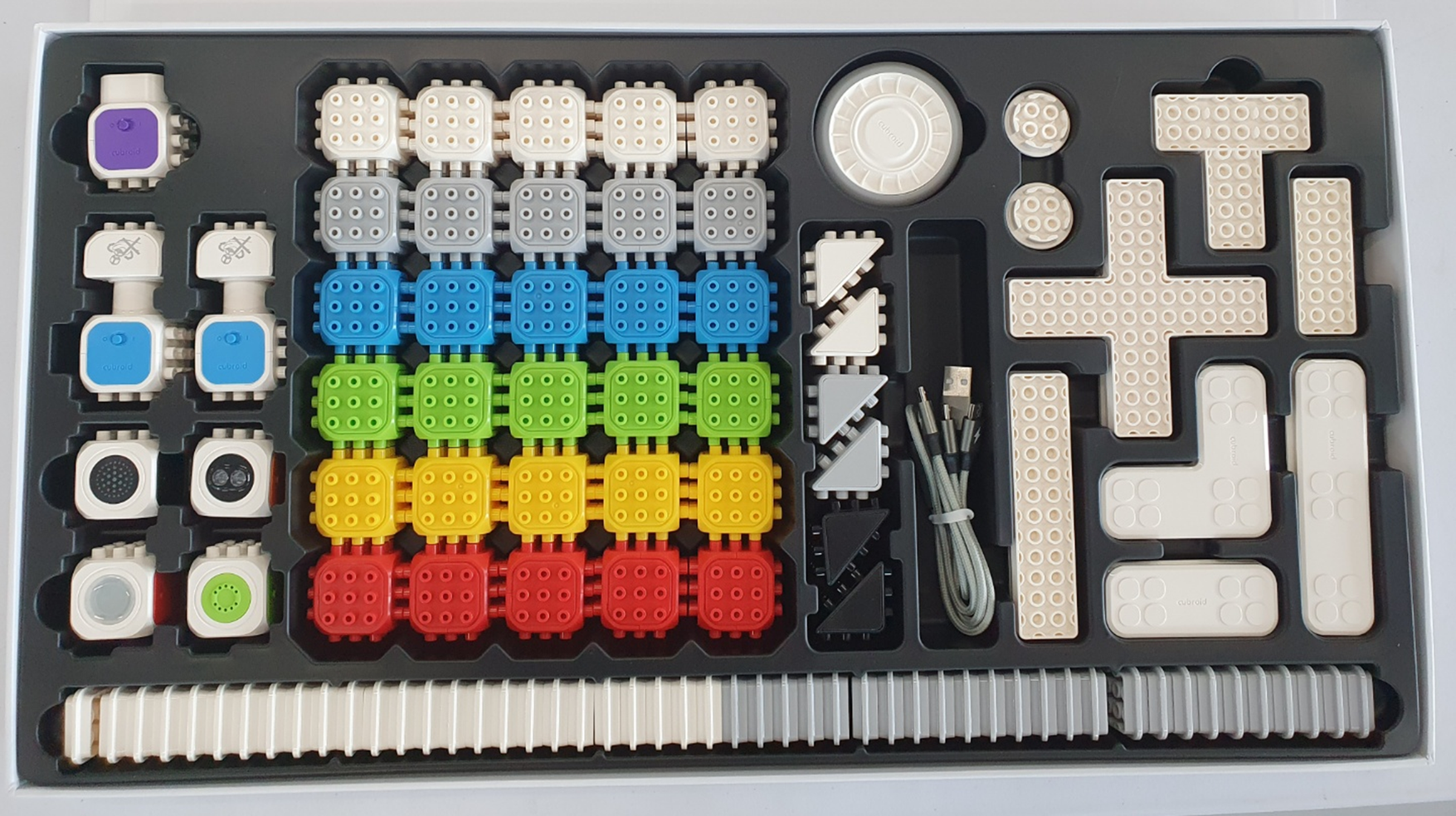
Stop the program, disconnect Bluetooth and turn off the blocks. Use the photo to return the parts to the kit and check that none are missing.
Built it, coded it and tested it? Tap to save your progress.